Sound In Motion for Mac
Edit the film. Perform the sound.
A complete, easy video editor and a full audio workstation in one app. Cut your picture, then play the Foley and effects onto it with your fingers, keyboard or trackpad — and every sound is royalty-free. Ready for the new touchscreen MacBook Pro.
New · Touchscreen MacBook Pro
Reach out and play the scene.
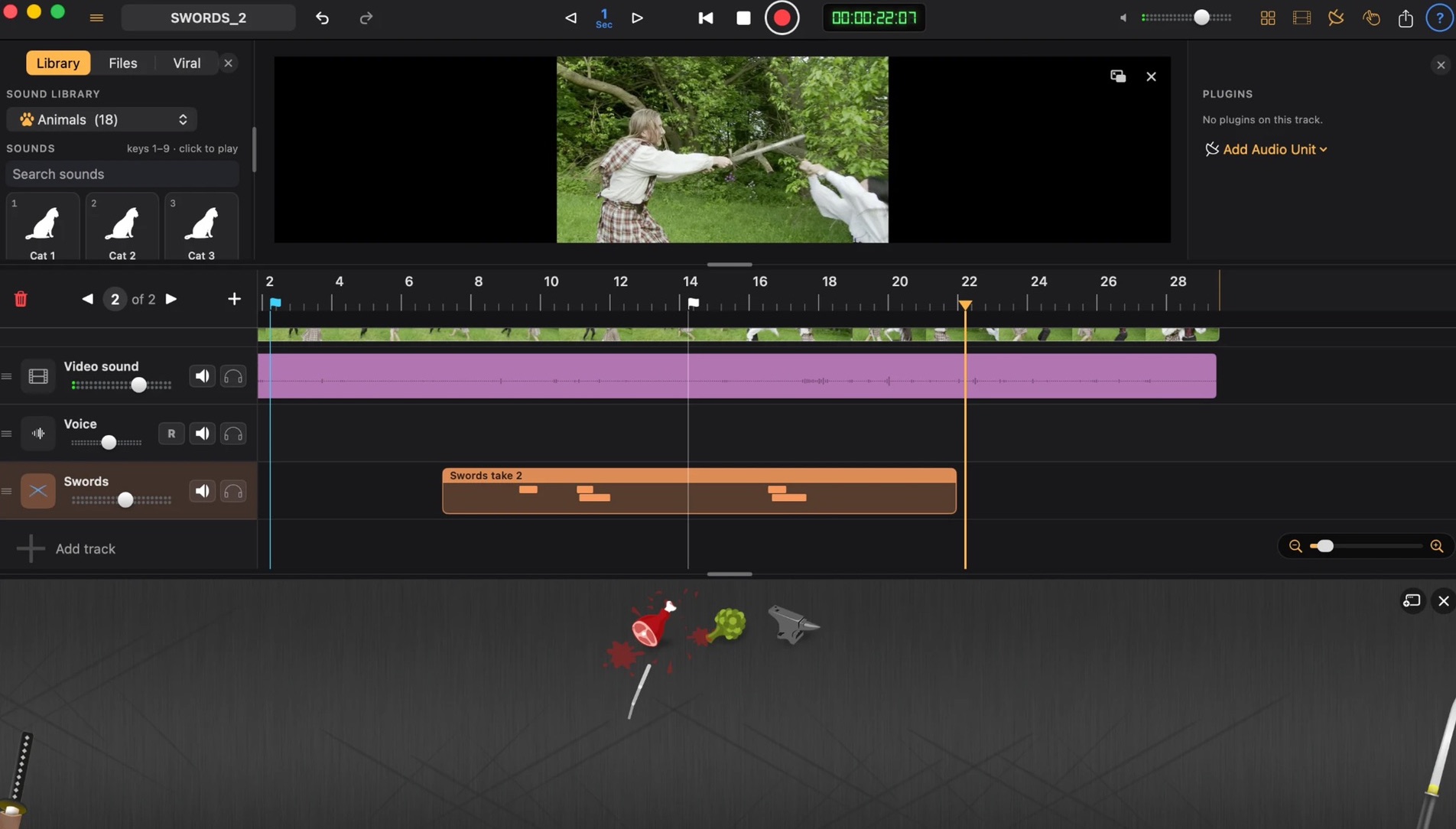
Sound In Motion Pro is made for the new MacBook Pro with a touch display. Play every soundboard right on the screen: swing the sword across the board and every clash lands on the frame. Tap to select, drag clips along the timeline, pinch to zoom, long-press a track to add it to the selection. No touchscreen? The same gestures work on the trackpad, and one Pro subscription covers your iPad and your Mac.

Cut mode
A complete video editor.
Easy from the first cut.
Switch between Cut and Sound in an instant: edit the picture, then sound it, on the same timeline.
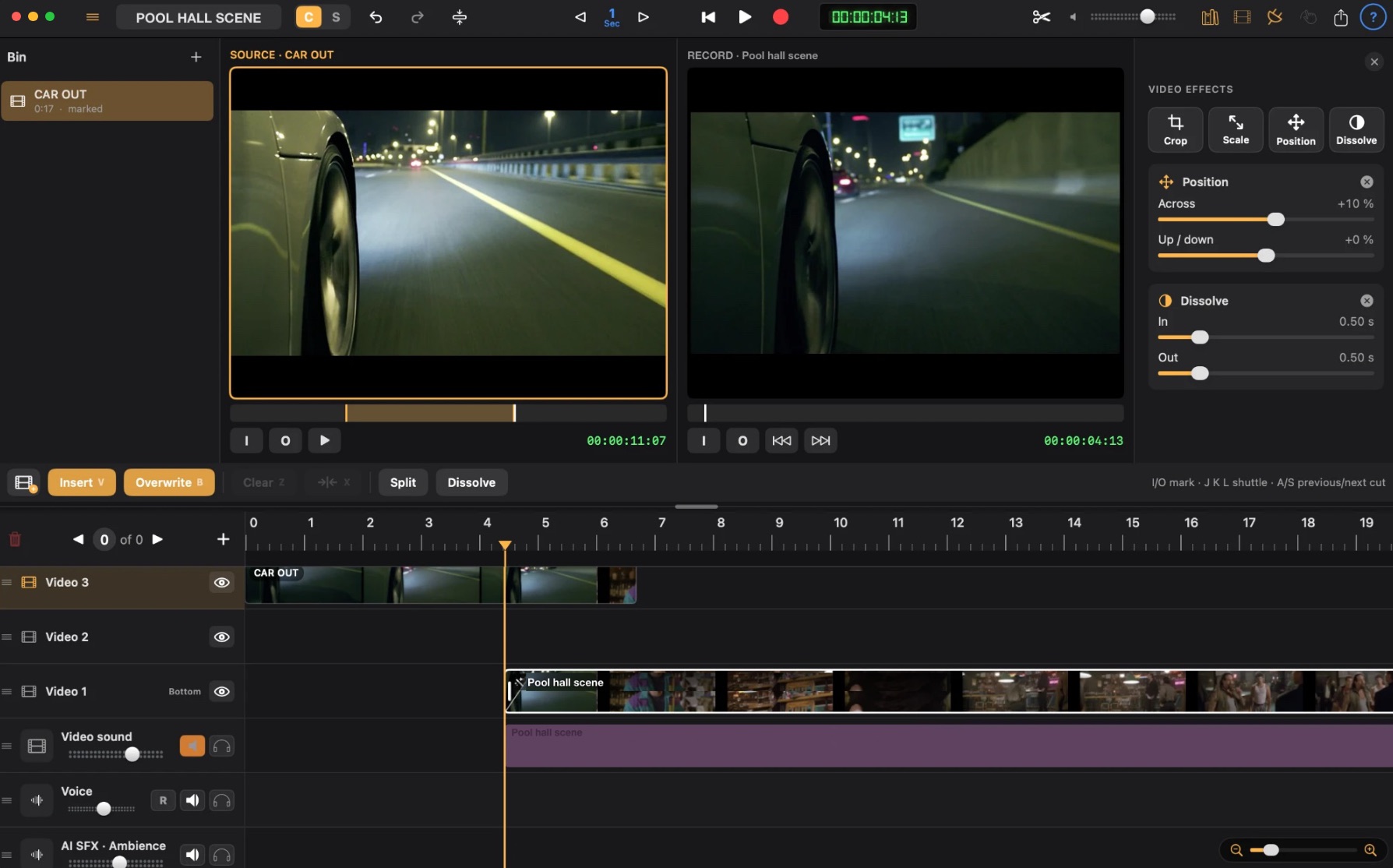
- Insert and Overwrite. Mark In and Out on the Source monitor and cut the shot onto any video track.
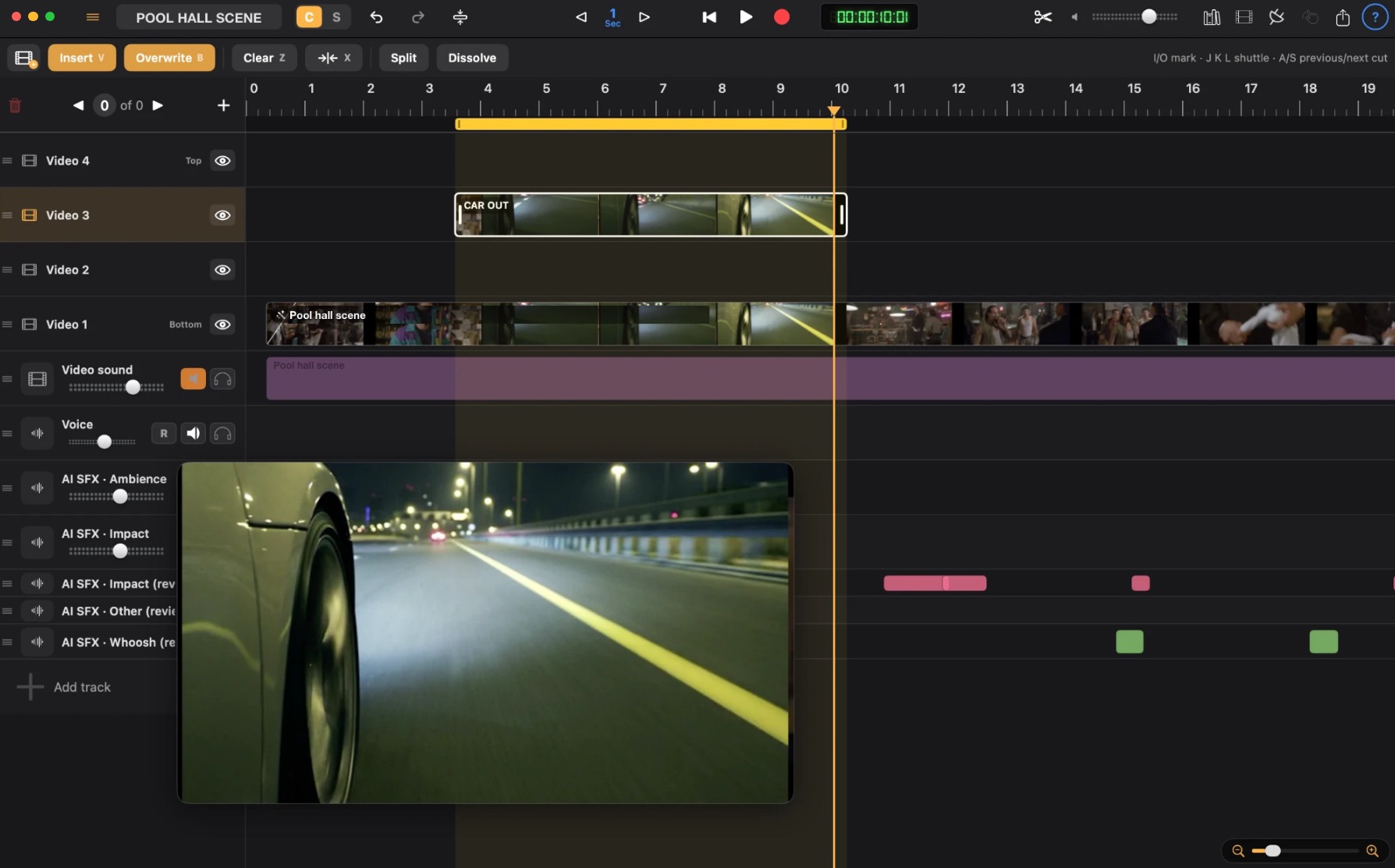
- Split, Clear and Extract. Cut at the playhead or with the Scissors tool; Clear leaves a gap, Extract closes it (ripple) over the loop range.
- Multiple video tracks. Stack shots and drag tracks up or down to reorder; the higher track shows on top.
- Dissolves. Add a dissolve at any cut and shape it in the effects panel.
- The video's own sound. Keep it on its track, mute it, delete it, or bring it back with Restore Video Sound.
- Almost any video. mkv, webm, avi, wmv, mpg and more are converted on your Mac as they're imported; the original is never changed.
- Full undo. Every edit is one undo step, so try anything.
Cut mode
Cut it like an editor.
Mark In and Out on the Source monitor, watch the sequence on the Record monitor, and cut the shot in with Insert or Overwrite. Crop, scale, position and dissolve each shot in the video effects panel.
Video tracks
Stack shots. Cut through the range.
Layer as many video tracks as you need; the higher track shows on top. Set a loop range and Clear, Extract or Split everything inside it, with the video floating over the timeline while you work.
Sound
Then make it sound real.
Timeline
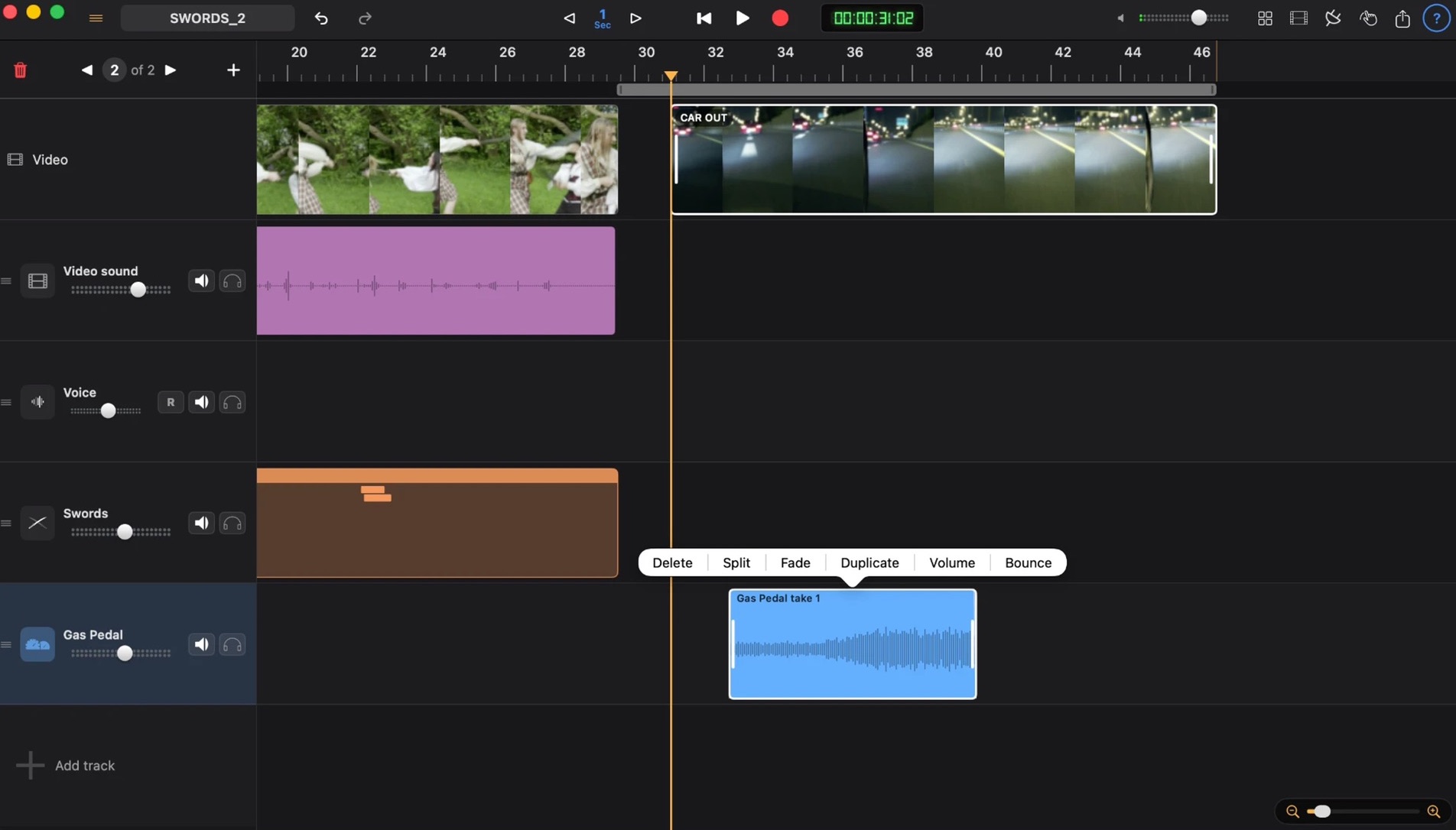
Your whole film, on one timeline.
Video, voice, Foley and live boards side by side, with an edit menu on every clip: Split, Fade, Duplicate, Volume, Bounce.
Footsteps
Walk with your fingers.
Pick the shoes and the floor, then walk across the board in time with the actor. Swipe to scuff.

Gas Pedal
Put your foot down.
Pick a car, start the engine, work the pedals. Real engine sound that revs with the scene, recorded as you drive.

Sound library
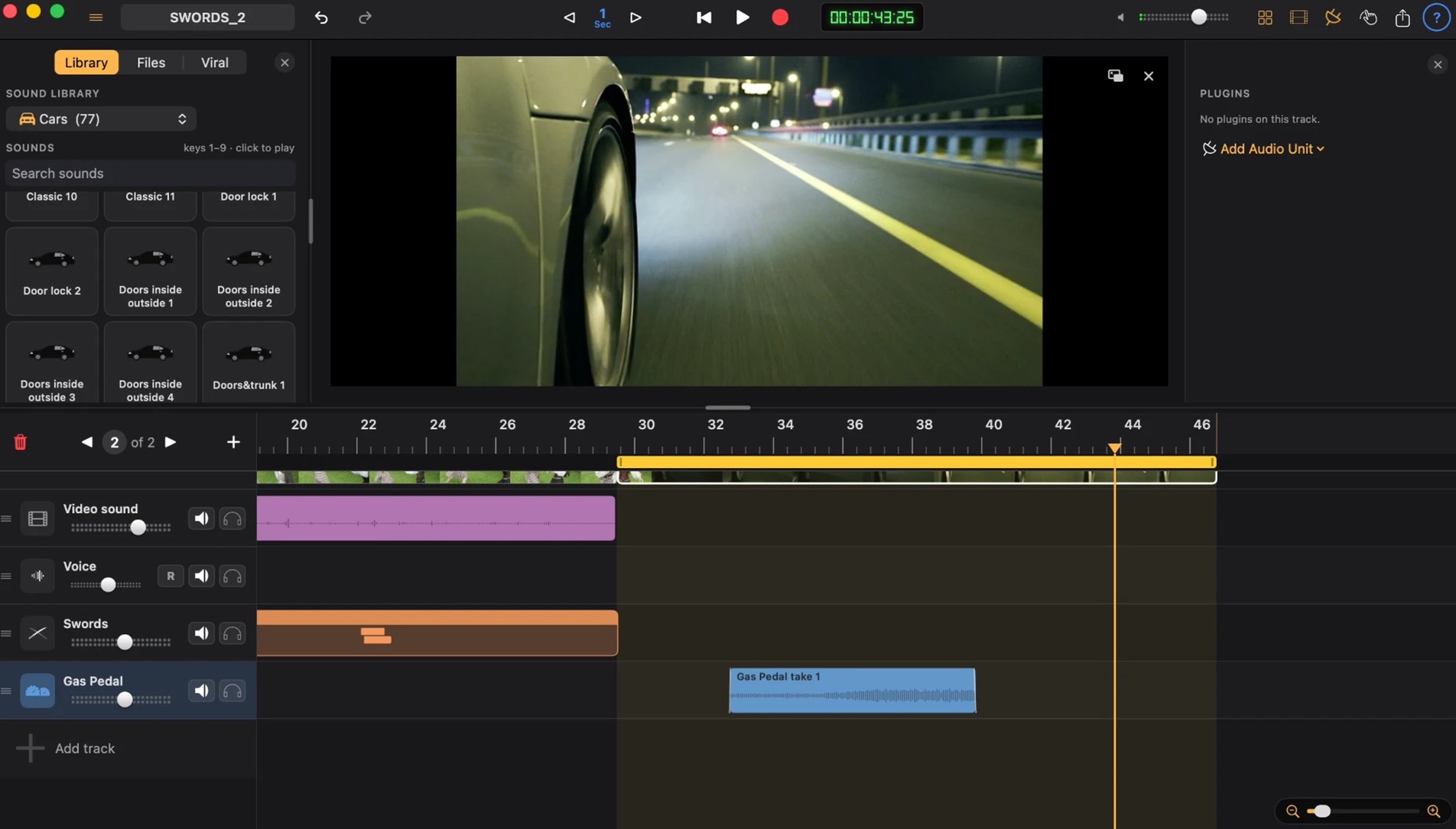
Grab a sound. Drop it in.
Cars, guns, animals and more, one click away. Select a range, audition, and paint it onto the timeline.
Instruments & plugins
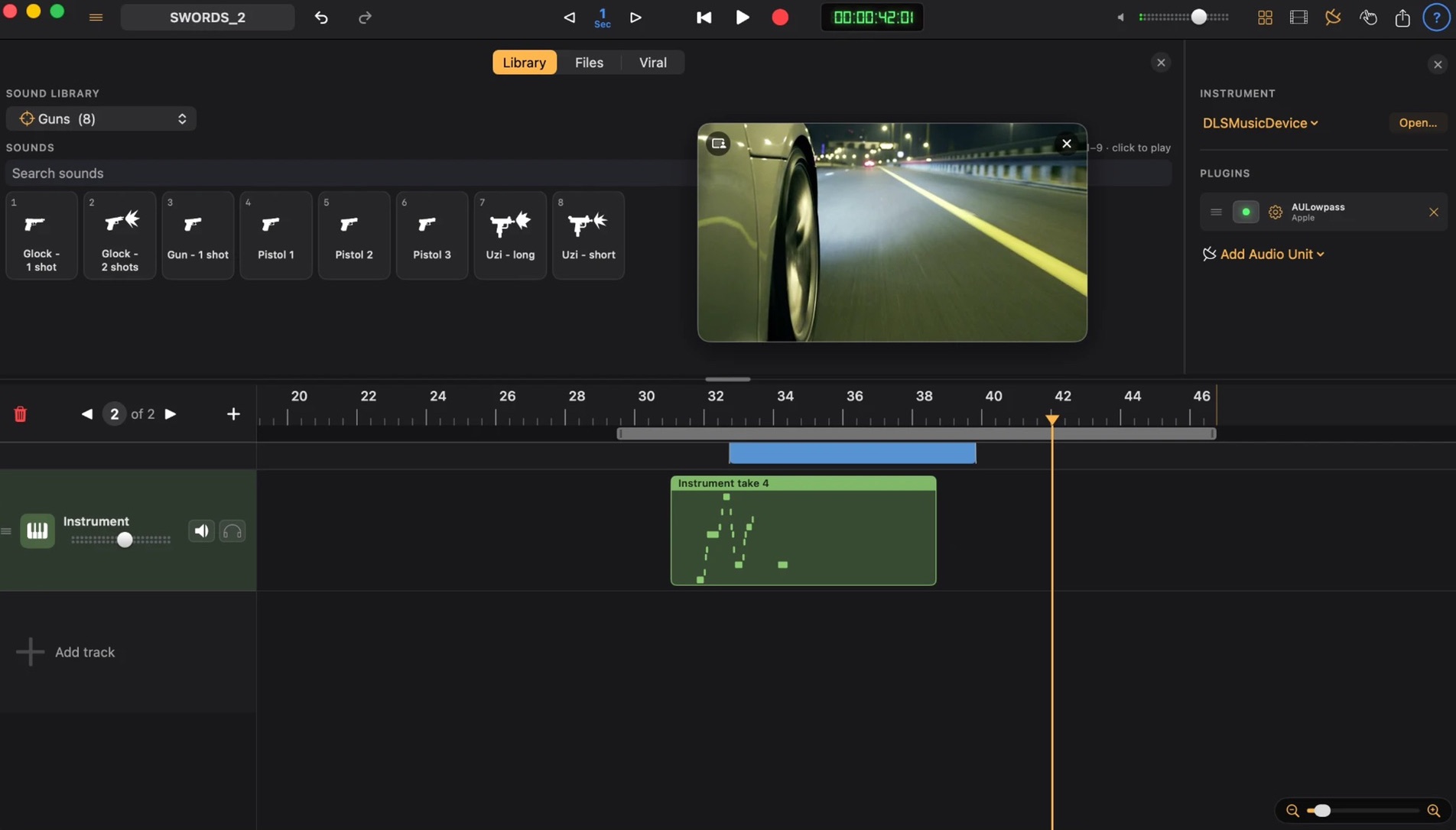
Your Audio Units, on every track.
Load any Audio Unit instrument or effect. Keep the picture floating while you tweak.
Musical typing
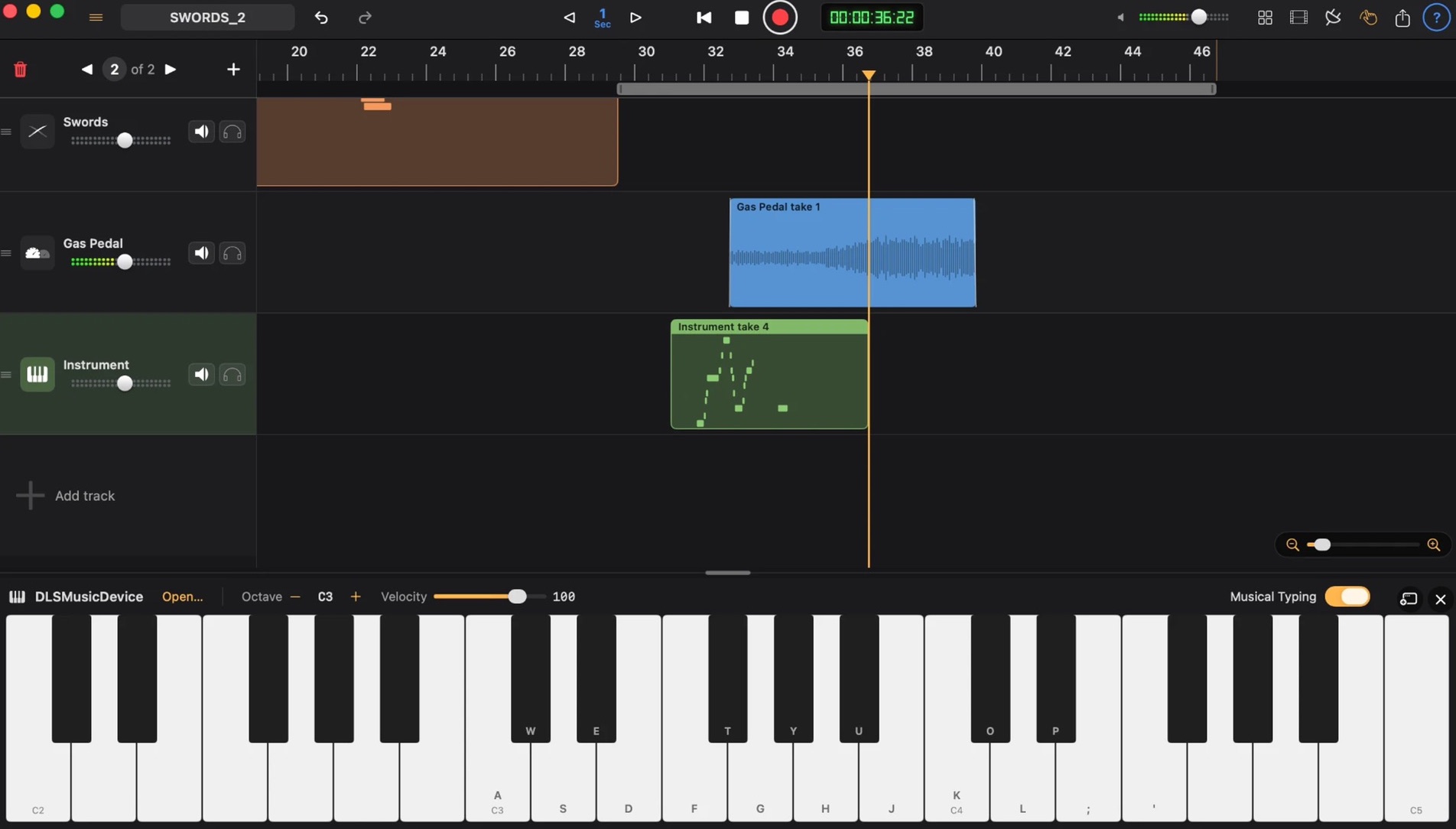
Your keyboard is a piano.
Play instruments straight from the keys, or plug in MIDI. Score a moment without leaving the edit.
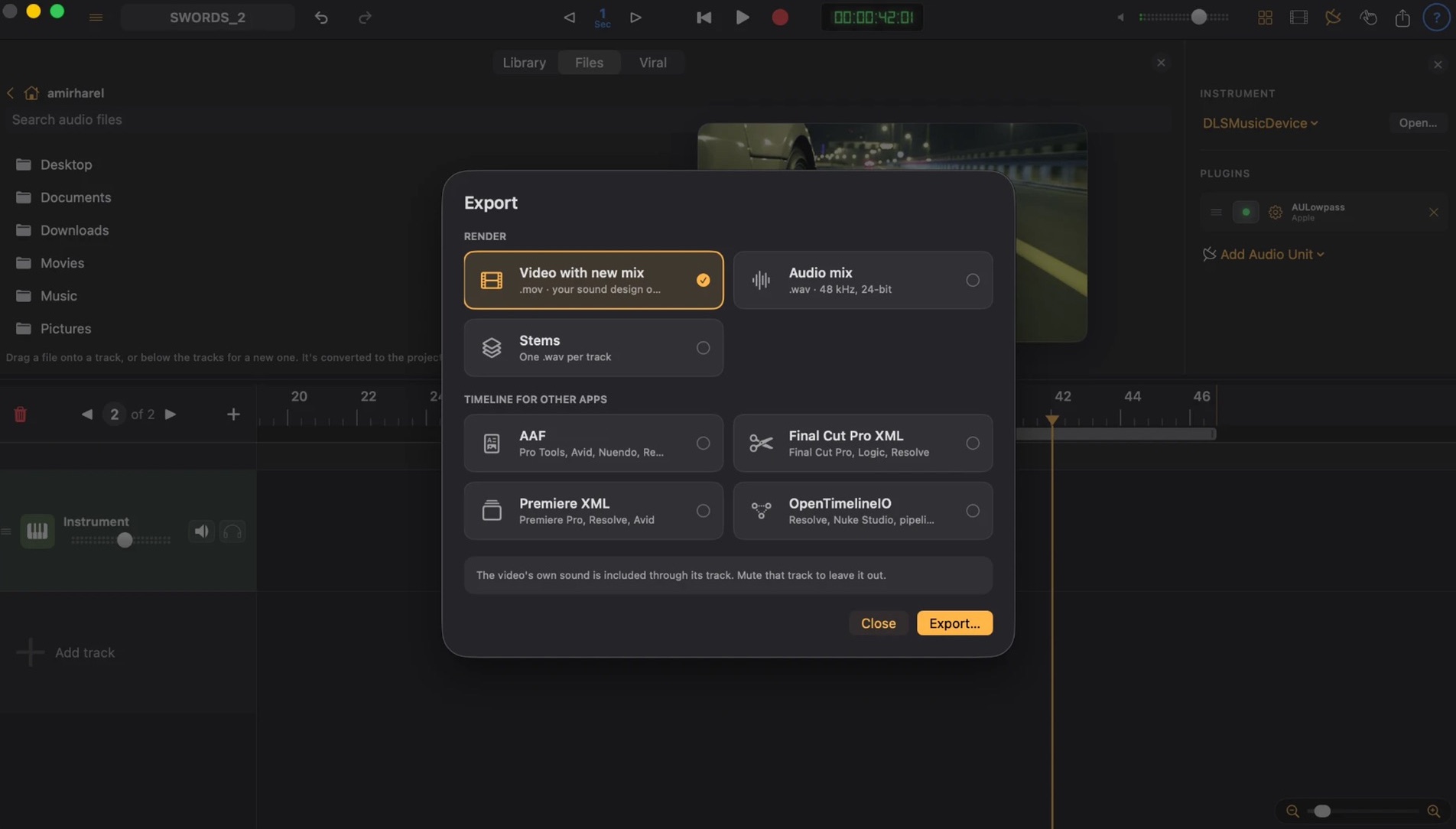
Deliver
Hand it off anywhere.
Bounce the video with your new mix, stems, or the whole session for Pro Tools, Final Cut, Premiere and Resolve.